Beyond Commercial VPNs: The Definitive Guide to Self-Hosting Your Own VPN
Are you truly in control of your online privacy? In an era where digital footprints are constantly tracked and data breaches are common, trusting a third-party

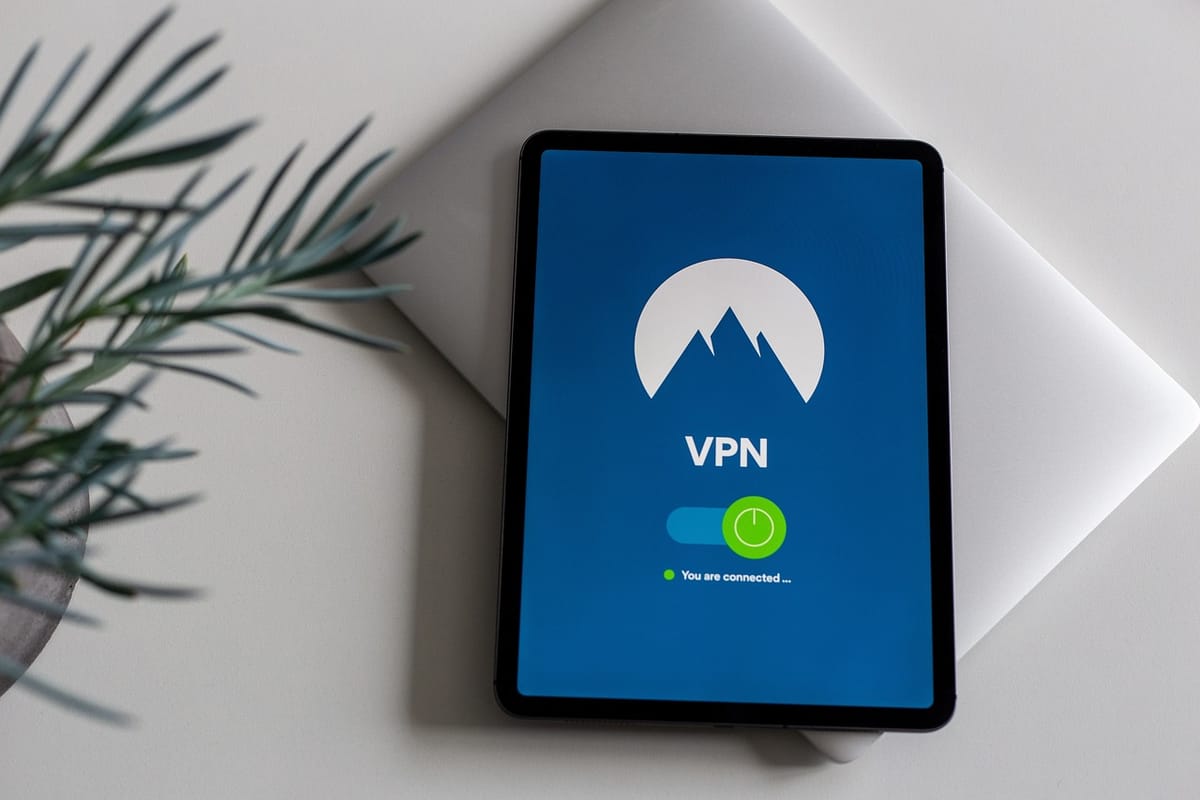
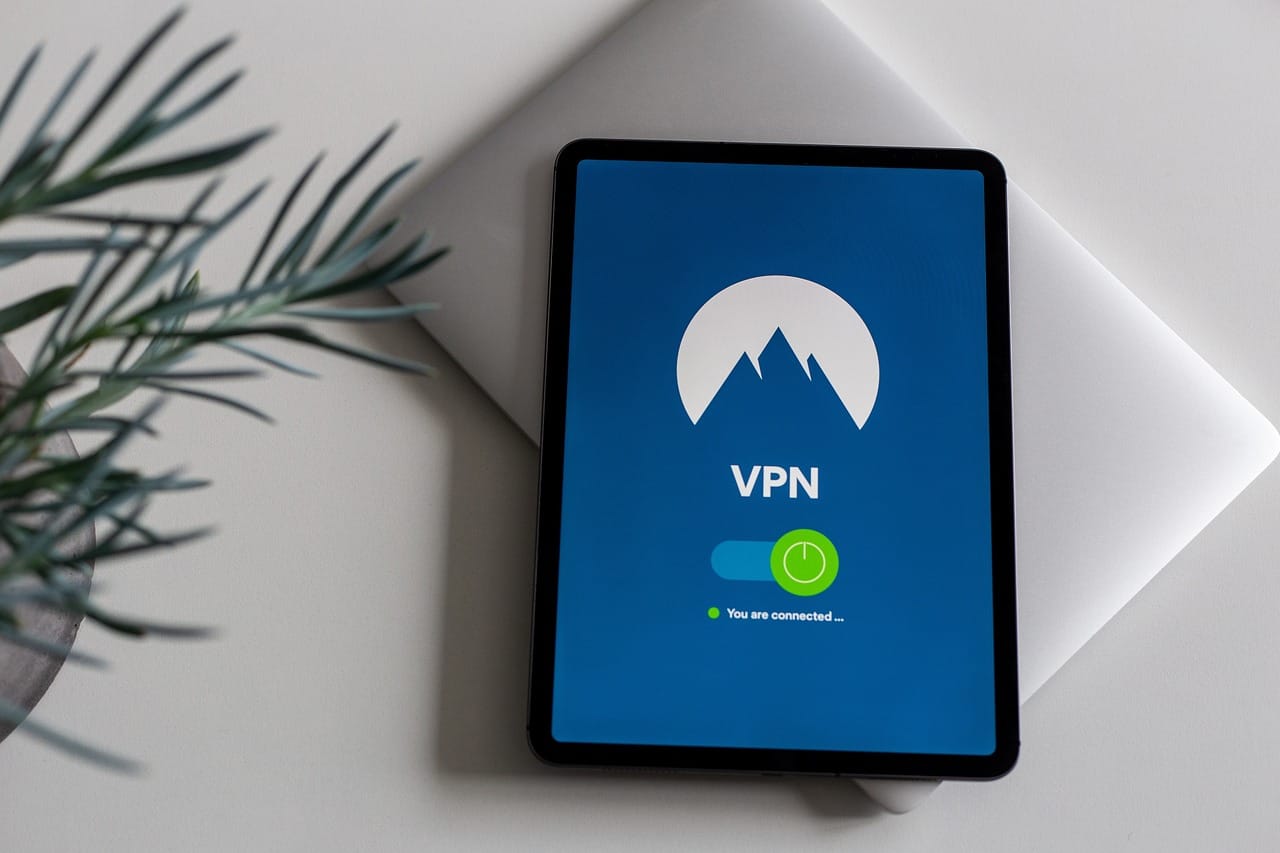
Are you truly in control of your online privacy? In an era where digital footprints are constantly tracked and data breaches are common, trusting a third-party VPN provider with your most sensitive information can feel like a leap of faith. What if you could take back that control completely? What if you could build your own secure tunnel to the internet?
Unleash Ultimate Privacy: Your Guide to Setting Up Your Own VPN
This guide will walk you through the empowering process of setting up your very own Virtual Private Network (VPN). By hosting your own VPN server, you gain unparalleled control over your data, ensuring true privacy and security without relying on external entities. It’s a step towards mastering your digital freedom.
Why Go Solo? The Case for a Self-Hosted VPN
While commercial VPNs offer convenience, they also come with inherent trust issues. When you host your own VPN, these concerns disappear. You become the sole administrator, eliminating the risk of third-party logging, data selling, or hidden vulnerabilities.
- Complete Control: You decide the server location, the software, and the configurations.
- Enhanced Privacy: No logs, no data retention policies dictated by others. Only you have access.
- Bypass Geo-restrictions: Access content from your chosen server location, just like a commercial VPN.
- Cost-Effective: For dedicated users, a small cloud server can often be cheaper long-term than recurring VPN subscriptions.
Imagine a diagram here showing a user's device connecting securely to their cloud-hosted VPN server, which then connects to the internet, illustrating the secure tunnel.
Choosing Your Weapon: VPN Protocols and Software
The core of any VPN is its protocol, which dictates how your data is encrypted and transmitted. Several robust options exist, each with its strengths. We recommend WireGuard for its modern cryptography, exceptional performance, and ease of setup.
- WireGuard: Fast, lightweight, and uses state-of-the-art cryptographic primitives. Ideal for most users.
- OpenVPN: Highly configurable, robust, and widely supported, but can be more resource-intensive.
- IPsec/IKEv2: Often built into operating systems, providing good security and performance, though configuration can be complex.
For ease of deployment, we'll focus on WireGuard. Several open-source projects simplify its setup, such as wireguard-install scripts or Algo VPN, which automates much of the process.
Prerequisites for Your VPN Adventure
Before diving into the setup, ensure you have these essentials in place. Don't worry, they are generally straightforward to acquire or learn.
- Cloud Provider Account: Services like DigitalOcean, Linode, Vultr, or AWS Lightsail offer affordable virtual private servers (VPS).
- Basic Linux Knowledge: Familiarity with command-line operations (like SSH, apt/yum, file editing) will be beneficial.
- SSH Client: PuTTY for Windows, or the built-in Terminal for macOS/Linux users.
- Domain Name (Optional but Recommended): A simple domain or subdomain can make connecting easier.
Step-by-Step: Setting Up a WireGuard VPN on a Cloud Server
This guide uses a popular script for WireGuard installation, streamlining the process significantly. We'll assume an Ubuntu 22.04 LTS server, but the steps are similar for other Debian-based distributions.
1. Launch Your Server Instance
Begin by provisioning a new server from your chosen cloud provider. A basic server with 1 CPU and 1GB RAM is usually sufficient. Select an operating system like Ubuntu 22.04 LTS.
Once your server is ready, connect to it via SSH. Replace your_server_ip with your server's public IP address:
ssh root@your_server_ip2. Install WireGuard Using a Helper Script
A community-maintained script simplifies the WireGuard server setup. It automates key generation, configuration, and firewall rules.
First, download and make the script executable:
wget https://git.io/wireguard -O wireguard-install.sh
chmod +x wireguard-install.sh
Now, run the script. It will ask you a series of questions. For most, the default options are suitable:
sudo ./wireguard-install.shThe script will ask for your server's public IP, the desired port, and the internal IP range for your VPN clients. It will then generate the server configuration.
3. Configure the Server and First Client
During the script execution, it will prompt you to add your first client. Provide a name for your client (e.g., myphone or mylaptop). The script will output the client's configuration, which you'll need for your device.
An example of the server's WireGuard configuration might look like this (simplified):
[Interface]
PrivateKey = <SERVER_PRIVATE_KEY>
Address = 10.7.0.1/24
ListenPort = 51820
PostUp = iptables -A FORWARD -i wg0 -j ACCEPT; iptables -t nat -A POSTROUTING -o eth0 -j MASQUERADE; iptables -A FORWARD -o wg0 -j ACCEPT
PostDown = iptables -D FORWARD -i wg0 -j ACCEPT; iptables -t nat -D POSTROUTING -o eth0 -j MASQUERADE; iptables -D FORWARD -o wg0 -j ACCEPT

[Peer]
PublicKey = <CLIENT1_PUBLIC_KEY>
AllowedIPs = 10.7.0.2/32
The script automatically enables IP forwarding and sets up firewall rules (iptables) to allow traffic to pass through your VPN server to the internet.
4. Configure Client Devices
After the script completes, it will display the configuration for your client. For mobile devices, it often generates a QR code. For desktops, it provides a text configuration file.
An example client configuration (e.g., for myphone):
[Interface]
PrivateKey = <CLIENT_PRIVATE_KEY>
Address = 10.7.0.2/32
DNS = 8.8.8.8, 8.8.4.4

[Peer]
PublicKey = <SERVER_PUBLIC_KEY>
Endpoint = your_server_ip:51820
AllowedIPs = 0.0.0.0/0
PersistentKeepalive = 25- Download the WireGuard app for your device (Android, iOS, Windows, macOS, Linux).
- Import the configuration (via QR code for mobile, or paste text for desktop).
Consider including a screenshot here showing the WireGuard client interface with a QR code scan option.
5. Connect and Test
Activate the VPN profile on your client device. To verify it's working, visit a website like whatismyipaddress.com. Your displayed IP address should now be your server's public IP address. You can also run a speed test to check performance.
Maintaining Your VPN
Maintaining your self-hosted VPN is crucial for ongoing security and performance. Regular updates keep your server protected from vulnerabilities.
- Update Your Server: Periodically run
sudo apt update && sudo apt upgradeon your Ubuntu server. - Monitor Logs: Keep an eye on system logs for any unusual activity.
- Security Practices: Use strong SSH passwords or, better yet, SSH keys for server access.
Take Back Your Digital Freedom!
Setting up your own VPN might seem daunting at first, but with the right tools and a clear guide, it’s an achievable and incredibly rewarding project. You’ve moved beyond trusting anonymous entities and built your own fortress of privacy.
Ready to reclaim your digital sovereignty? Dive in and try setting up your own WireGuard VPN today! Share your experiences and any tips you discover in the comments below, or ask questions if you run into hurdles.